Typing Optimization Roadmap
tags:: #output/essay Tools Productivity
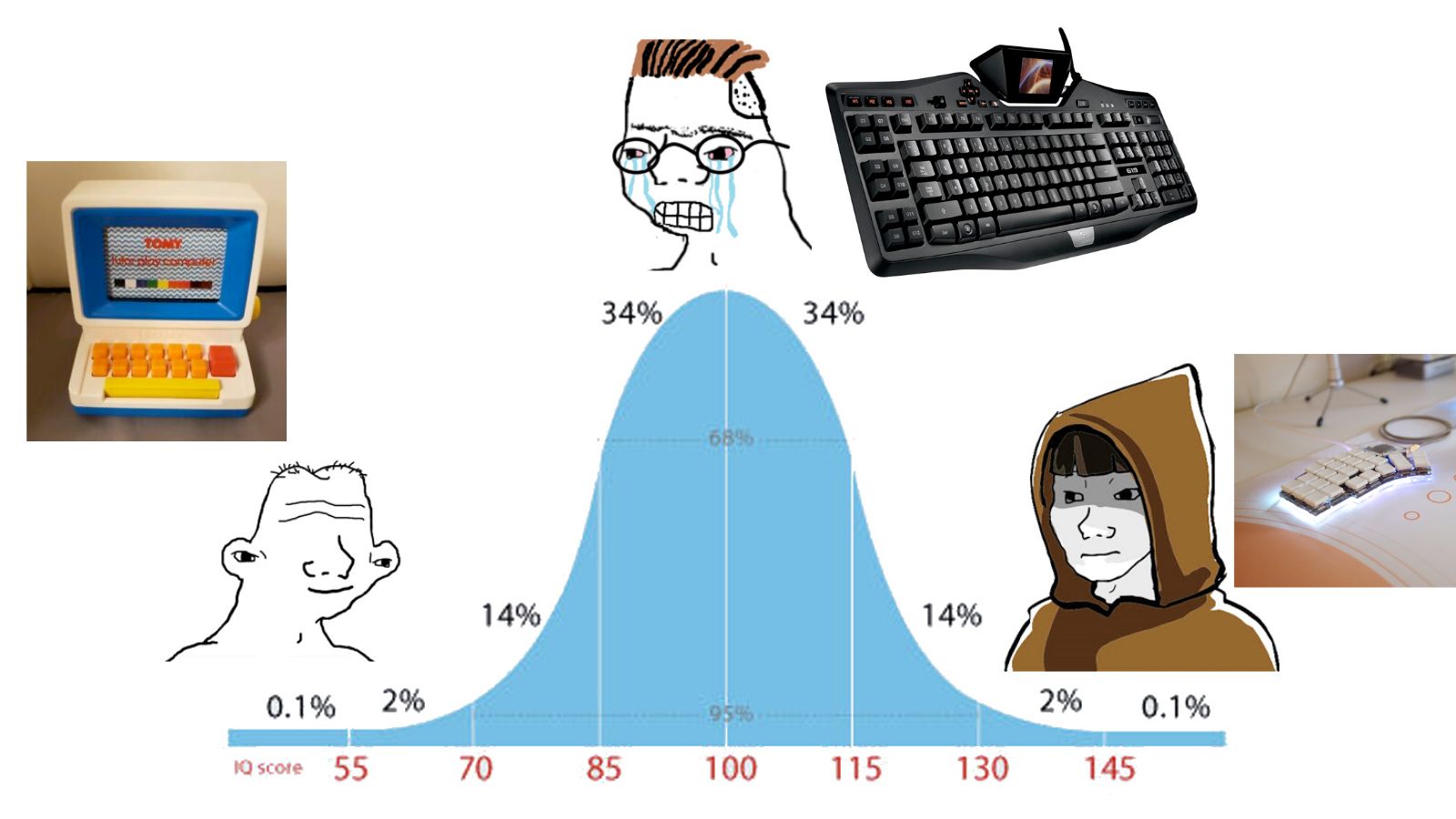
WARNING: This document goes all the way down into one of the depths of the internet.
Keyboard Construction: Mechanical Keyboards
Your regular rubber dome keyboard is crap. Laptop keyboards are pretty okay, but desktop keyboards are just you trying to push down on a mushy film of rubber. It's hard to push down, you don't feel when you pressed it, and it sounds and feels dirty. No more condom keyboards.
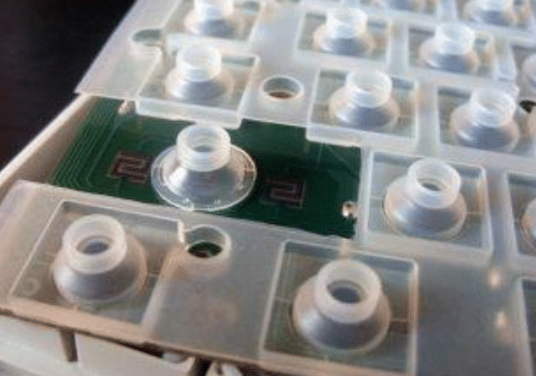
Mmhhhh just look at that beauty! In a mechanical keyboard, literally every key is a separate...key. If you want, you can even have different feelings or sounds for different keys.

And there's a whole world of ASMR...
This is the gateway keyboard mod.
From here on it goes downhill.
Into awesomeness.
Keyboard Layout: Typewriters Don't Exist Anymore
Why are our keys arranged like QWERTY? It's optimized so that you almost never type subsequent letters with subsequent keys. That way the typewriter doesn't jam up.
But this is literally the opposite of ergonomic movement. Your keyboard is engineered to make your fingers move as much as possible.
There are a bunch of new layouts designed for less movement. With these, you can type a lot just on your home row (the place where your fingers rest on the keyboard when they're not typing).
Here's a visualization of key usage across some layouts (in English of course):

Switching layout halves the total distance your fingers need to travel.
Key Layout, Part 1: That's Not The Shape of My Hands!
Look down at your hands. Now look back to me. Now back down. Now back to me. Does the position of the keys correspond to the direction your fingers can move?
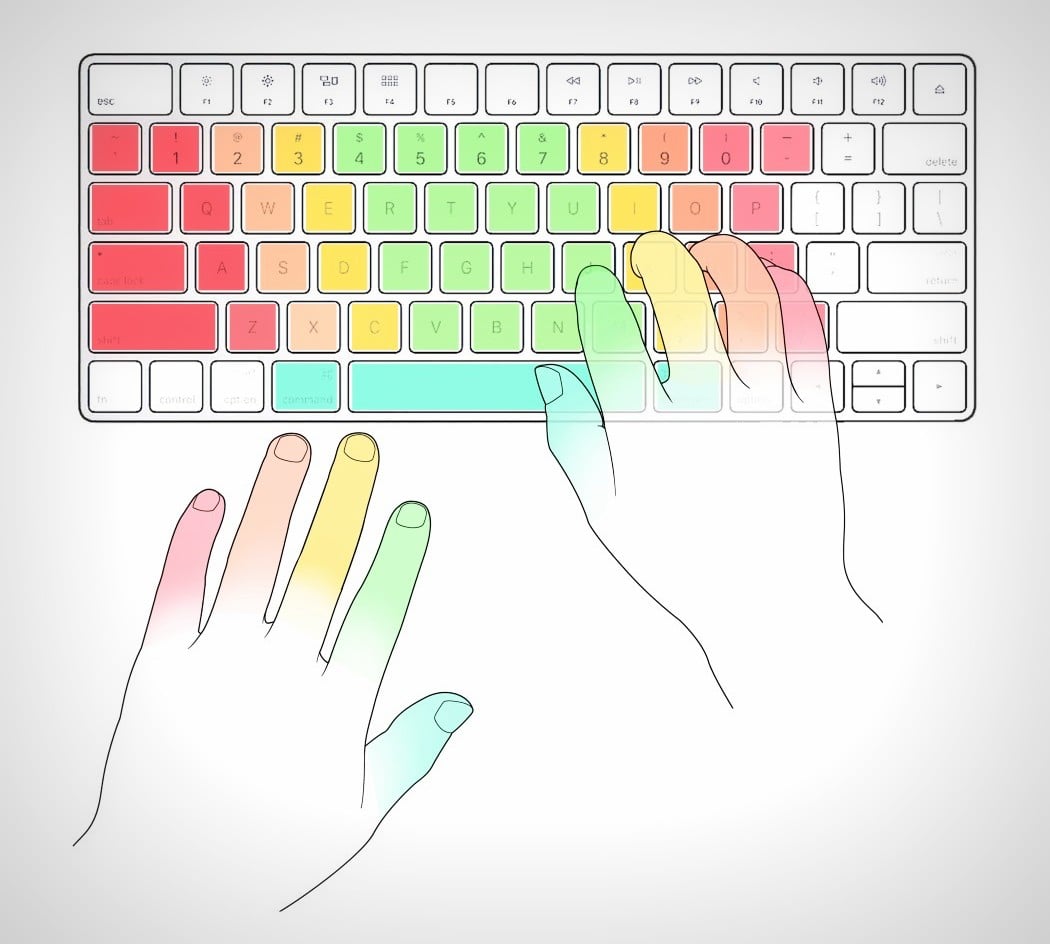
Right hand is pretty okay. Fingers move slightly left, but that's in the same direction as your arm is anyways.
But left...that hand moves "up" but that's actually "left" or diagonal?
This doesn't make sense. Let's fix it.
Enter...the ortho-linear keyboard:
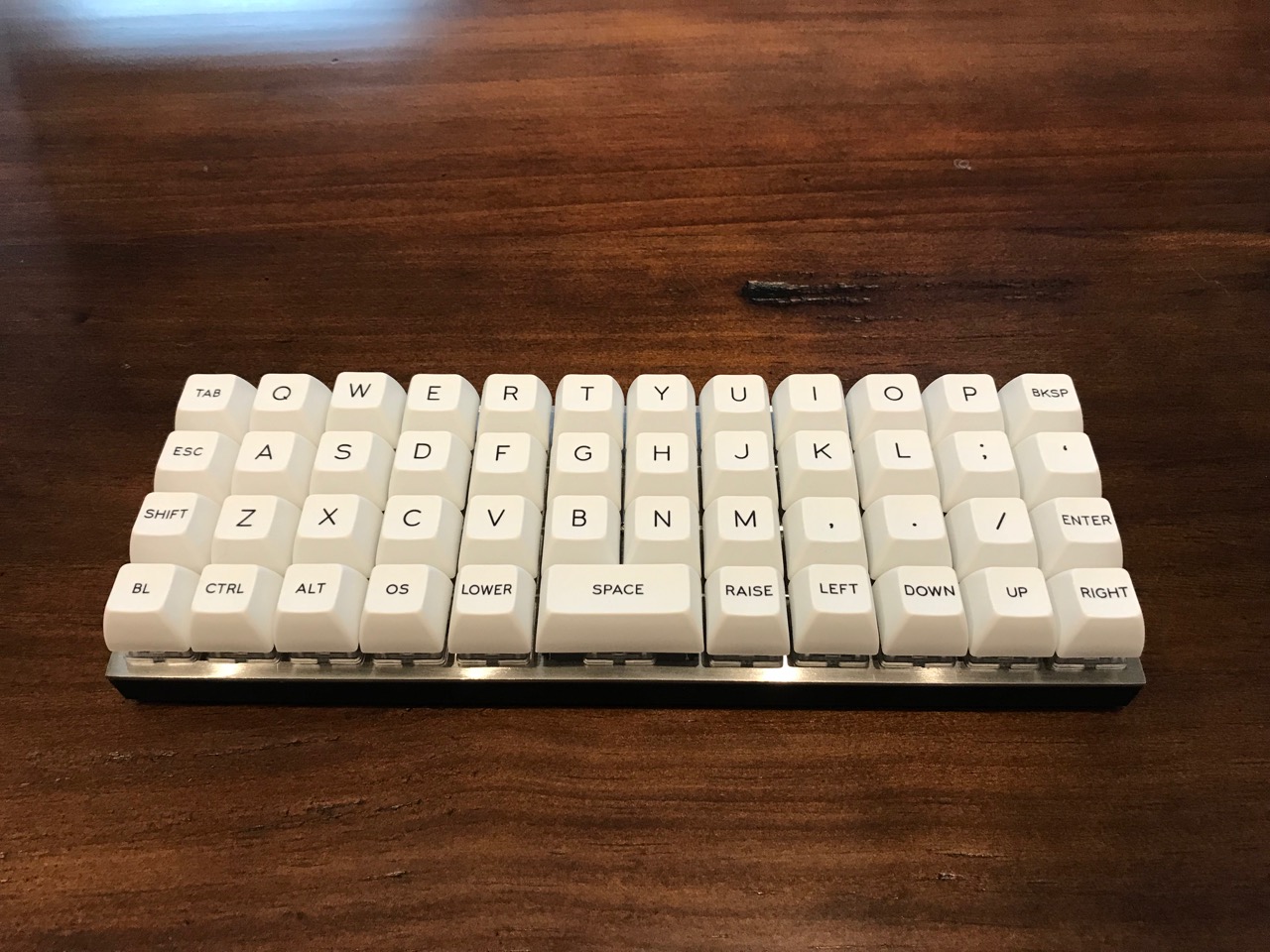
(Notice the lack of keys—we'll get to that.)
Ahhh. Hands move in one direction.
Key Layout, Part 2: You Have Two of Them
Hands, I mean.
How are your arms laying down on your desk? Pointing inwards to the keyboard. And your wrists are rotated back outwards because the keyboard itself is vertical.
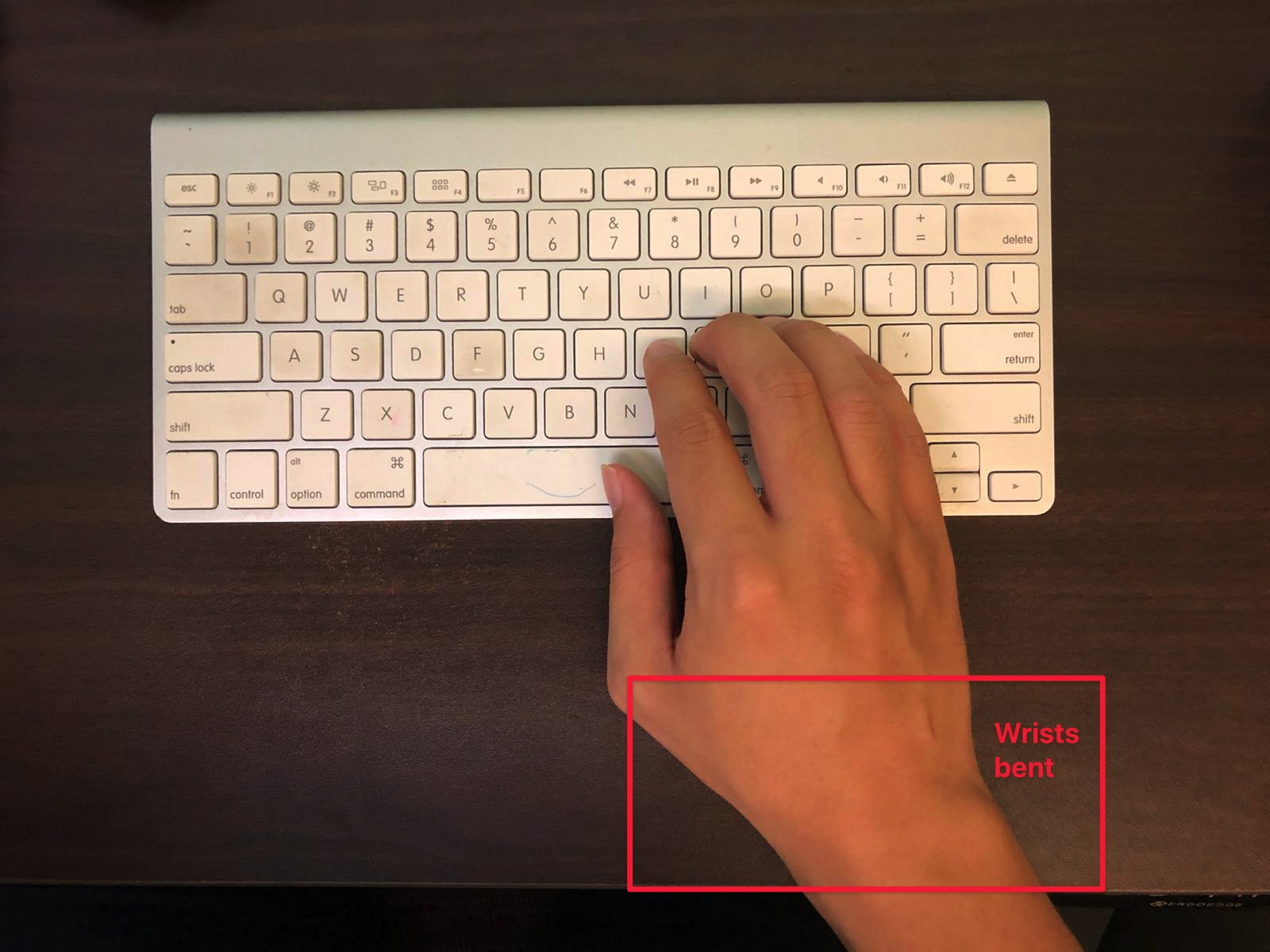
You just want your arms to rest neutrally so vertically. If you split your keyboard in two, you can do that. Then we end up with the split ortho keyboard:

(All you need is a saw.)
Key Layout, Part 3: What Those Fingers Can Do... And How They Can Do It Even Better
If you rest your hand on your keyboard, just flat: are the keys perfectly following the shape of your fingers?
With ortholinear keyboards we realized that there should be no row stagger: the rows shouldn't be shifted. But we do have shorter and longer fingers: we should have column stagger.
Your fingers will be in a much more neutral position with an ortholinear ergonomic column-staggered mechanical keyboard.
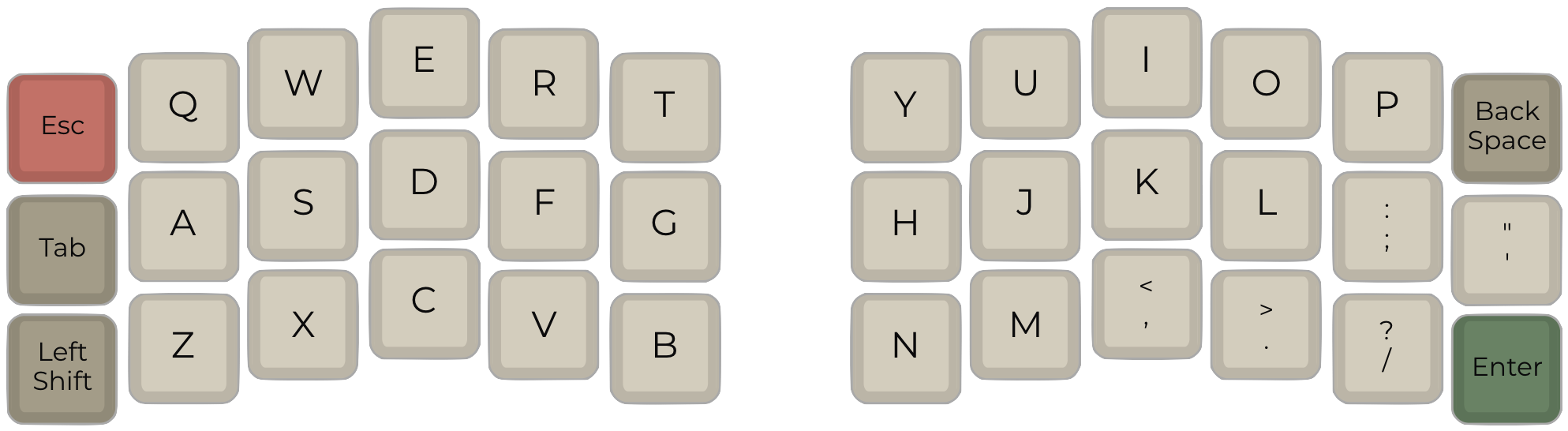
By this time you might as well drop the text on the keys too. And set up tenting so they stand up a little—that way your wrist is neutral:

Less Keys = More Typing
What's up with the suspicious lack of keys in these keyboards?
The further your fingers need to move, the more straining it is. Moving sideways is a lot harder than up or down, and you can reach down a bit further than up.
So really, you want to minimize the amount of keys.
How do you still type everything then?

Two keys will be dedicated to go to "a higher layer" or "a lower layer." Having three layers is the least confusing, but you can add as many as you want.
Do whatever is most useful for you. Media controls? A full number pad? The world is yours for the taking.
Let's Go Custom
We're far beyond the point where you can buy this in a computer store. Best you can get is a DIY kit.
But while you're here, why not take a picture of your hand and optimize the column stagger exactly to the shape of your fingers?
Manufacturing a circuit board is pretty cheap, I've done it a few times already.
Hahahaha You're Still Using Your Mouse?
Do you KNOW how much time you're wasting moving your hand between the keyboard and the mouse? How imprecise and difficult it is just to select a word so you can delete it?
Let's start of nicely with some normal shortcuts. MacOS is pretty good:
- Alt: Word
- Cmd: Line
Combine these with:
- Arrow keys: to move around quickly
- Backspace: to delete a word/line/sentence
- Shift: to select quickly
Okay now the Real Hacker's Way: vi. I'll start with the meme so you get an idea of the learning curve:

It's worth it though. Especially for programming, but also for normal text typing.
With Vim, every key gains infinite power. You can delete a whole sentence with "das" (delete-a-sentence). Change a word with "cw" (change-word). Select a paragraph and move it two paragraphs up with "V{d{{p".
How? Layers! Or "modes" is what they call it. Normal Mode lets you move and surgical changes to your text. Insert Mode lets you type.
Quick overview:
Here's a cheat sheet:
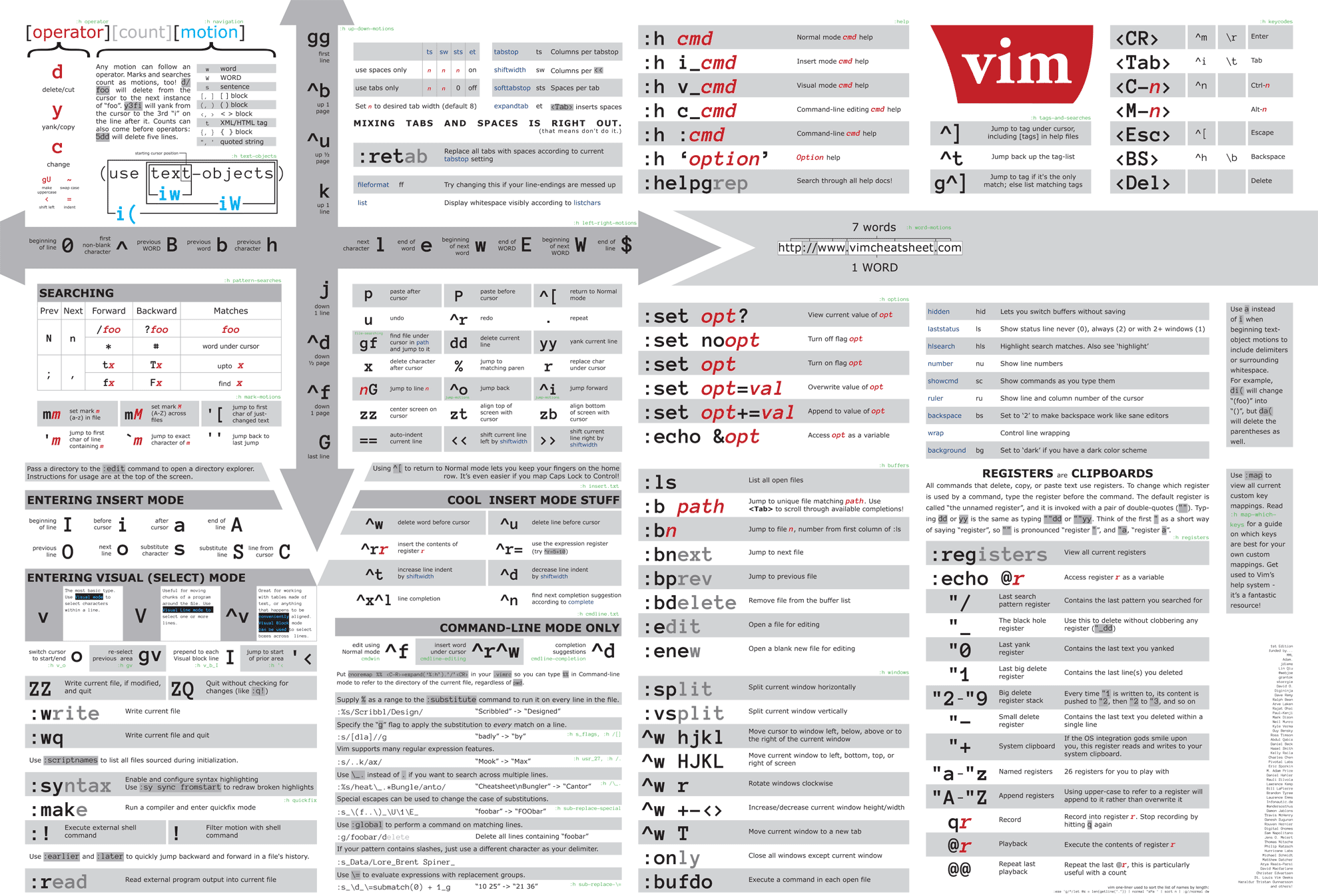
Yeah.
It's a learning curve.
But most of it actually makes sense.
The basics:
- Movement. h = left, j = down, k = up, l = right (home row)
- Word Objects. w(ord), e(nd of a word), s(entence), b(ack)
- Operations. c(hange), d(elete), p(aste)
And then you combine them into chords. Change word, back two words, paste, delete two up, etc.
The Hyper Key: An Easy One To Finish Up
What if a key's function changed depending on whether you press or hold it?
Take Caps Lock.
It's so easily reachable, yet we rarely use it.
Caps Lock is my Hyper Key: normally it works just like caps lock. But when I press another key simultaneously, it does something special.
I set it up to open specific applications. That way I can switch between them super quickly:
- Caps Lock + F: Firefox
- Caps Lock + E: Editor
- Caps Lock + M: Music
- Caps Lock + I: IntelliJ
- Caps Lock + T: Terminal
- Caps Lock + C: Google Chrome
- and so on...
So.
Where are you going to start?
Oh, we didn't even talk about normal keyboard shortcuts. These work almost anywhere (replace Cmd with Ctrl on Windows):
- Cmd+Q: Quit
- Cmd+W: close Window
- Cmd+N: New (new window, new file,...)
- Cmd+T: new Tab
- Cmd+O: Open